


Thursday afternoon at Corgi Co, Outlook went quiet. Then SharePoint started throwing errors. Doug, the company’s IT admin, did what any good admin does: he confirmed the outage, posted an update to the intranet, and went to email everyone. Except email was the thing that was down.
That moment is what this article is about. Not the outage itself (I covered that as it happened in my live updates post), but the question it leaves behind: when your whole company runs on Microsoft 365 and Microsoft 365 is what’s broken, how do you tell everyone what’s going on?
Corgi Co is fictional. Thursday wasn’t. Around 12:40 PM Eastern, Outlook and Exchange Online mailboxes started dropping, and within the hour the incident reached SharePoint, Copilot, Planner, Intune and more. Downdetector logged over 130,000 Outlook reports at the peak. Teams mostly held up, which gave most of us somewhere to talk. Next time we might not be that lucky.
Four channels that behave like one
Doug’s next idea was Viva Engage. A company-wide community would reach everyone. Except Corgi Co never finished setting up its communities, and building them mid-outage would take days to propagate, not minutes.
Then he hit the bigger problem. Even a perfect Engage setup wouldn’t have helped. Engage lives in the same tenant as Outlook and SharePoint, and it signs in the same way. We think of Teams, Outlook, SharePoint and Engage as four channels. During an outage, they behave like one.
Remote and hybrid teams have no hallway
In a brick-and-mortar office, an outage is annoying but survivable. Someone walks down the hall, stands up in the middle of the floor, and tells everybody what’s going on.
A fully remote company doesn’t have a hallway. Microsoft 365 is the office: the meeting room, the mailroom and the break room. Hybrid teams are split between people who can hear the announcement and people who can’t. And staff on the road are working from a phone on airport Wi-Fi, where a dead Outlook app looks exactly like a bad connection.
That changes the plan. Assume nobody is at a desk. Reach people on their personal phones, keep every message short enough to read on a lock screen, and make sure the status page works on a phone.
Know your blast radius
Before you write a line of policy, sort your tools into two piles: what goes down together, and what doesn’t.
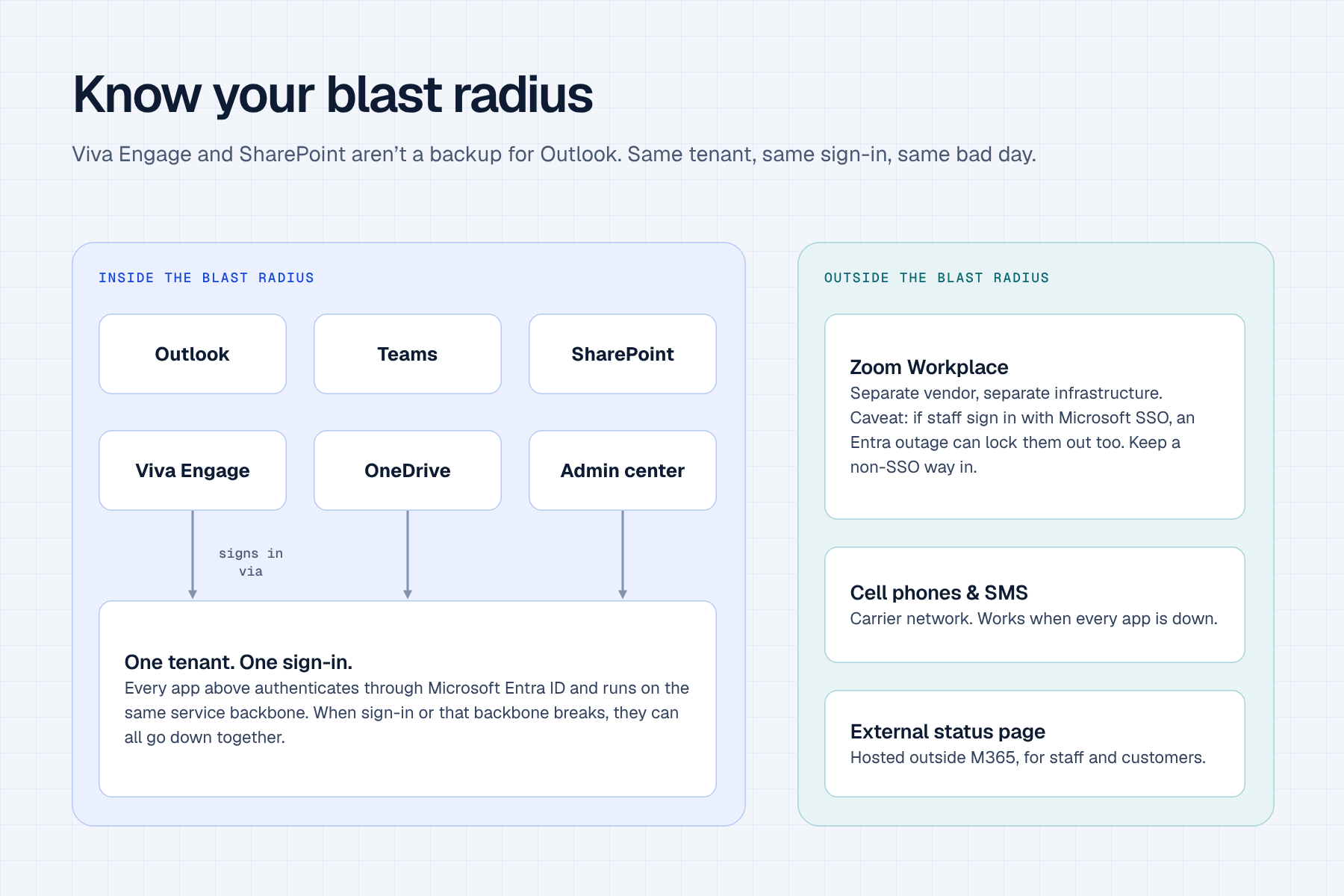
Inside the blast radius: Outlook, Teams, SharePoint, Viva Engage, OneDrive, even the admin center. One tenant, one sign-in through Microsoft Entra ID. Thursday’s fix was a patch to an upstream authentication and routing component. When that layer breaks, everything on top of it can break with it.
Outside the blast radius:
- A second platform from a different vendor: Zoom, Slack, Webex or Google Meet.
- Cell phones and text messages. The carrier network doesn’t care whether your tenant is healthy.
- Your website, if it’s hosted somewhere other than Microsoft 365.
One catch that’s easy to miss: if your people sign in to Zoom or Slack with Microsoft single sign-on, that “separate” platform still runs through Entra. A sign-in outage can lock them out of the backup too. Keep at least one way in that doesn’t depend on Microsoft.
The escalation flow
The rule is simple: use the best channel that still works, and know in advance what the next one down is.
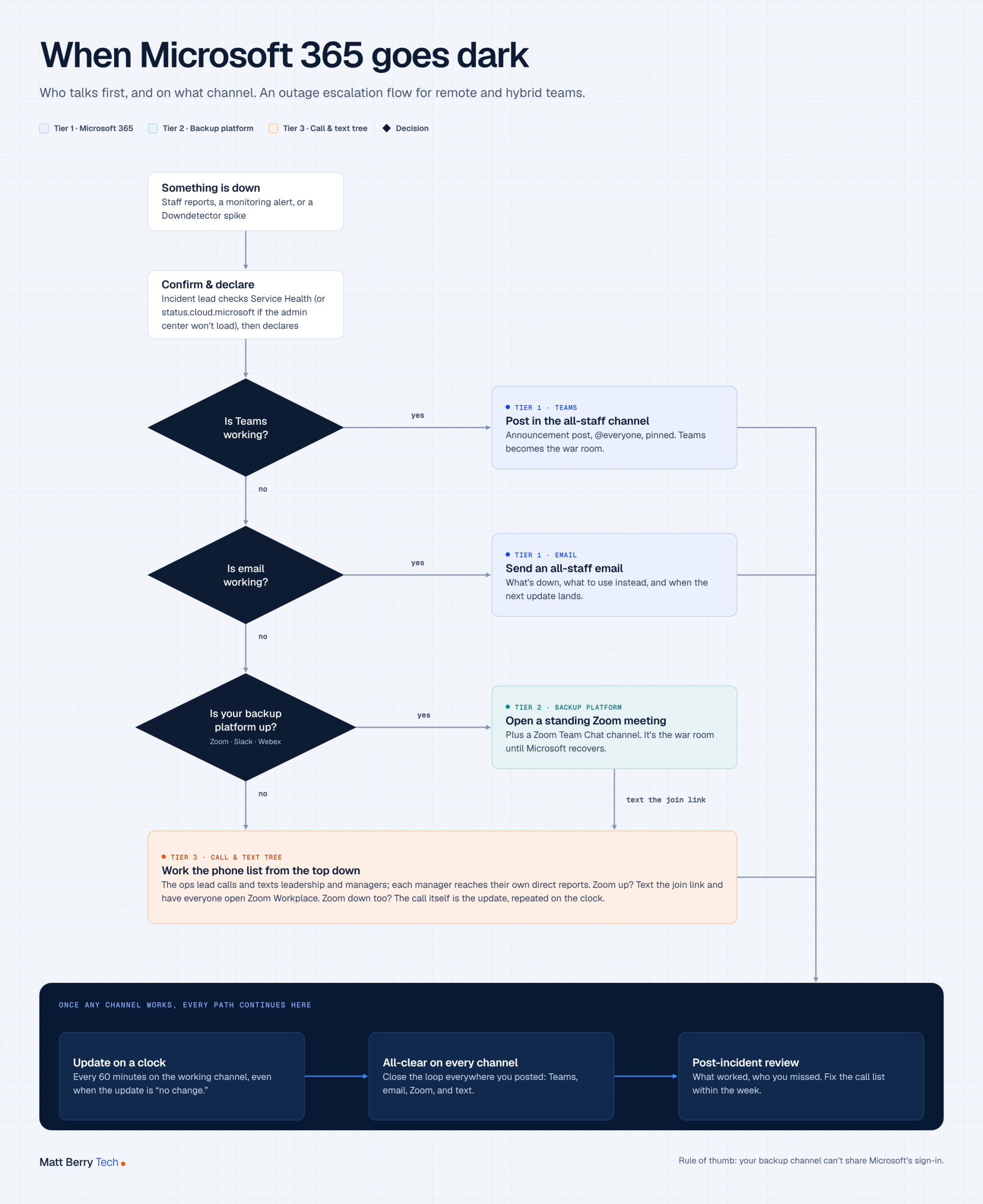
- Confirm and declare. Check Service Health in the admin center, or status.cloud.microsoft if the admin center won’t load. Then declare it, so everybody stops troubleshooting their own laptops.
- Tier 1: Teams or email, if either works. One all-staff post or email that says what’s down, what to use instead, and when the next update lands.
- Tier 2: your backup platform. A standing Zoom meeting and chat channel becomes the war room until Microsoft recovers.
- Tier 3: the call and text tree. If email and Teams are both down, nobody hears about the Zoom meeting unless you tell them over the one network that still works: their phone.

Every path ends the same way: updates every 60 minutes (even when the update is “no change”), an all-clear on every channel you used, and a short review of what worked and who you missed.
The call and text tree
The call tree is old school, and that’s exactly why it works. It runs on phones, not on your tenant.
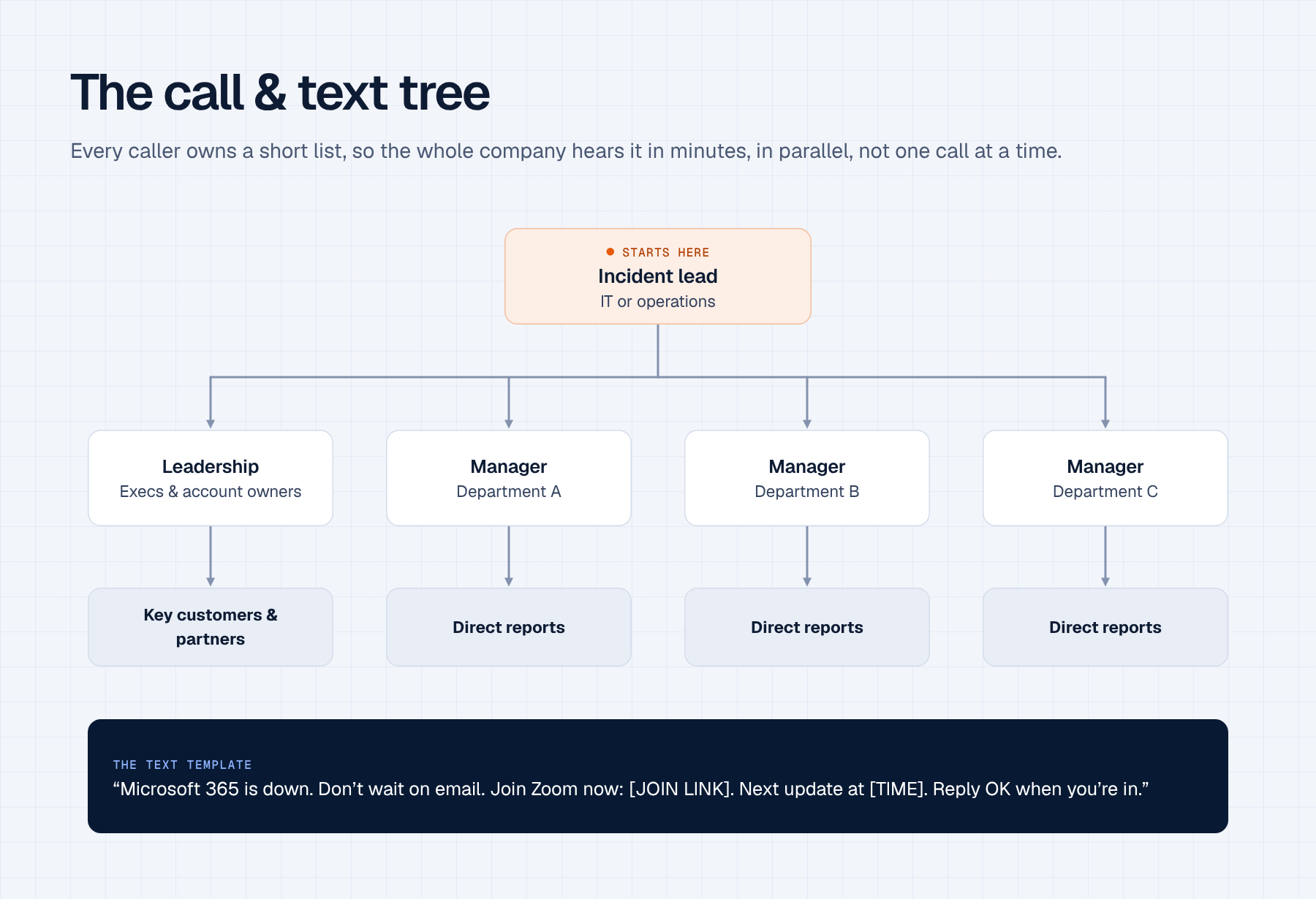
The incident lead calls and texts leadership and the managers. Each manager reaches their own direct reports. Account owners reach key customers. Everyone owns a short list, so the calls happen in parallel and the whole company hears it in minutes.

Write the text message now, so nobody is wordsmithing during an outage:
Microsoft 365 is down. Don’t wait on email. Join Zoom now: [JOIN LINK]. Updates: [STATUS PAGE]. Next update at [TIME]. Reply OK when you’re in.
“Reply OK” tells each manager who they still need to chase. And one more thing that’ll bite you: don’t store the call list in Microsoft 365. A SharePoint list you can’t open isn’t a call list. Keep a copy on managers’ phones, in your backup platform, or on paper.
Your customers and your status page
Your customers are probably having the same bad day you are. If you’re on Microsoft 365, your support inbox is a black hole right now. Reach out before they come looking for you.

- Keep a short customer contact list outside Microsoft 365, and have account owners make the calls. “We know, we’re on it, here’s how to reach us today” goes a long way.
- Use your website as your status page, if it’s hosted outside Microsoft 365. Build two pages now and switch them on when you need them: one for staff (password-protected, with the Zoom link) and one for customers or members.
- Point every call, text and social post at it, so people can check back on their own instead of calling you.
- Make sure you can still get in. If your website login runs through Microsoft sign-in, you’ll be locked out right when you need it. Give more than one person a way to post.
What goes in the policy
The diagrams are the playbook. The policy is what makes people follow it. Remote, hybrid or in the office, here’s what I’d put in yours:
- Scope: remote, hybrid, in-office and traveling staff, plus contractors and customers.
- Trigger: a clear rule for declaring, such as company-wide impact or 30 minutes down.
- Roles: an incident lead, a backup lead, managers as callers, account owners for customers.
- Channel order: your actual tools, in tier order.
- Contact list: personal mobiles collected with consent, stored outside Microsoft 365, refreshed quarterly.
- Templates and cadence: the first post, the text, the all-clear, and how often updates go out.
- Customer communication: status page, website banner, social posts.
- Drills: twice a year.
- Owner: one named person who updates the policy after every real incident.
Drill it before you need it
Thirty years in IT has taught me one thing about plans: the first time you run one shouldn’t be during the real thing.
Pick a quiet afternoon and pretend Microsoft 365 is gone. Kick off the call tree, send the Zoom link by text, and time how long it takes everyone to reply OK. It’ll take 15 minutes, and you’ll find the wrong phone numbers, the manager who never got the list, and the person who’s only reachable on Teams.
Microsoft will have another outage. Every cloud provider does. The difference between a chaotic afternoon and a calm one is whether your people already know where to go when the usual channels go quiet. And if you want the diagrams for your own team, they’re yours to adapt.
Sources
- Microsoft 365 outage: Outlook, Teams and Copilot (live updates), Matt Berry Tech, Nov 12–13, 2026